Skip to content
View in the app

A better way to browse. Learn more.

ParkCrafters

A full-screen app on your home screen with push notifications, badges and more.

To install this app on iOS and iPadOS
  1. Tap the Share icon in Safari
  2. Scroll the menu and tap Add to Home Screen.
  3. Tap Add in the top-right corner.
To install this app on Android
  1. Tap the 3-dot menu (⋮) in the top-right corner of the browser.
  2. Tap Add to Home screen or Install app.
  3. Confirm by tapping Install.

DoorEvents (automatic trigger doors)

(1 review)

6 Screenshots

DoorEvents (automatic trigger doors)
English:
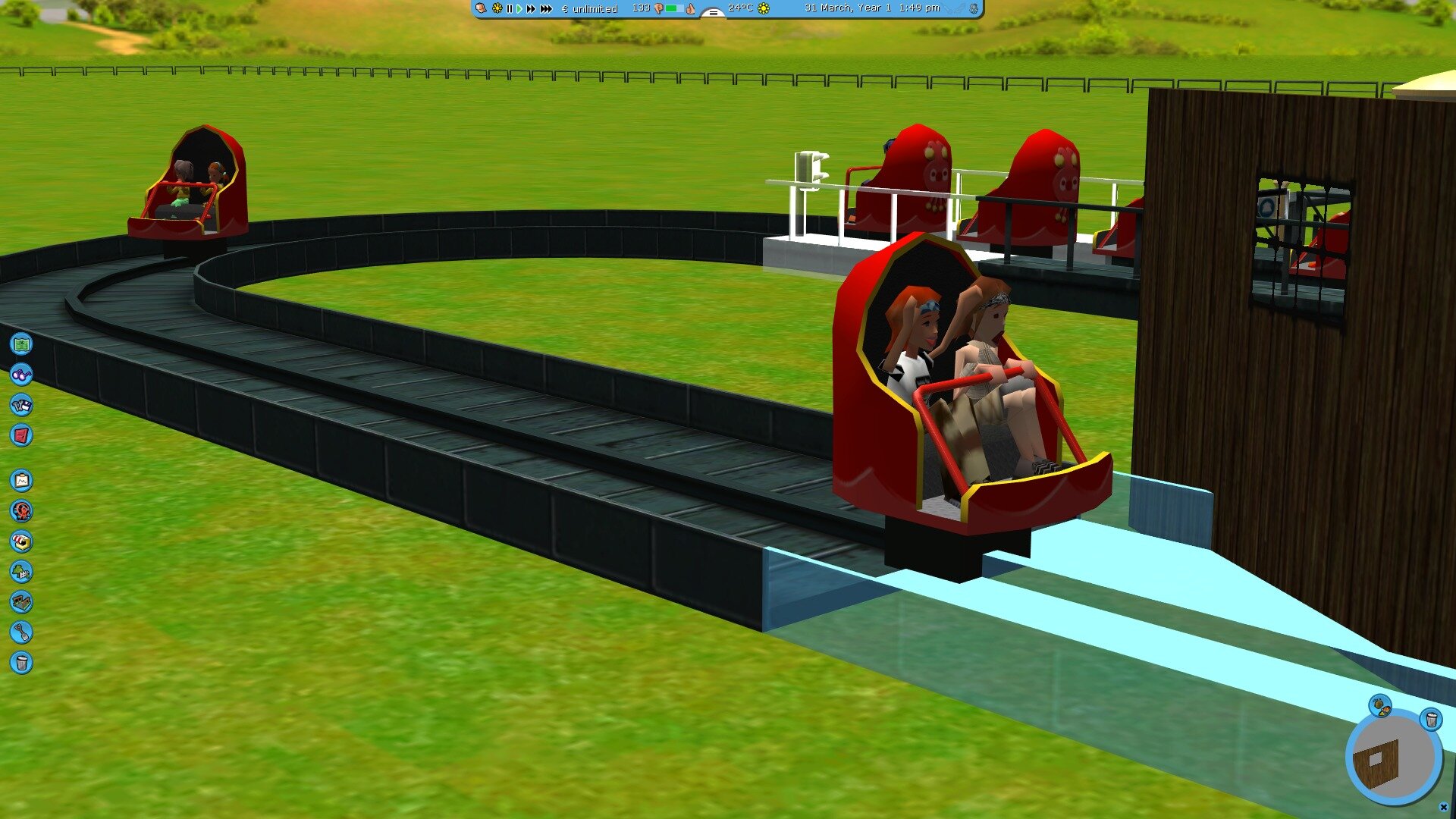
automatic doors that open by means of rit events that can be set with a trigger on the track.
Readme file in description.
All of the doors are set up as ride events and can be found under the Ride Events tab.
Each piece comes with 3 variants, with a 4, 6 and 8 second time.

Dutch:
automatische deuren die open gaan door middel van ritevents die met een trigger zijn in te stellen op de baan.
Alle deuren zijn ingesteld als ritevenementen en kunnen worden gevonden onder het tabblad attractie evenementen.
Elk stuk wordt geleverd met 3 varianten, met een tijd van 4, 6 en 8 seconden.
Readme bestand in beschrijving.

I hope you enjoy it.
Look at my page for more rides / haunted houses and parks
https://forums.rctgo.com/user-34699.html
or on parkcrafters:
https://parkcrafters.com/profile/1172-coaster100king/

What's New in Version 04/29/2026 08:30 PM

Released

I reupload the door file because a few OVL files were missing.
read me file for the automatic doors is in the download unzip the file.

User Feedback

You may only provide a review once you have downloaded the file.

(edited)


Does not work beacuse the Ovl's and the Doors folder are missing. Only the doorevents folder is there which needs ovl's and is supposed to be in the Doors folder.

Screenshot 2026-04-24 145024.png

Edited by Snaker

Response from the author:

My mistake, good that you responded. I will add a new working file with OVL files.

Account

Navigation

Search

Search

Configure browser push notifications

Chrome (Android)
  1. Tap the lock icon next to the address bar.
  2. Tap Permissions → Notifications.
  3. Adjust your preference.
Chrome (Desktop)
  1. Click the padlock icon in the address bar.
  2. Select Site settings.
  3. Find Notifications and adjust your preference.