



Wilhelm1407
Moderators
-
Joined
-
Last visited
Everything posted by Wilhelm1407
-
-
Thank you OldBones! It's funny I didn't do a ton of planning when I built it to be honest. I actually went through several drafts before finally finding a layout I was completely happy with. And detailing the ride was a challenge, but I'm happy with how it turned out. When filming with cheat engine whether you're filming with 30fps or 60fps, there shouldn't be any frame loss. By filming in slow motion at x0.25 speed you make a lot more frames than normal, so when you speed it up x4.0 there shouldn't be any lag. It's a technique I learned by watching some Planet Coaster tutorials. As for sound lining up with the sped up footage, I generally will make scenery, tracks, rides, ect invisible either in the LOD options or with the toggles. I usually turn off all anti aliasing and shadows anything that will slow the game down. Then I just record at normal speed, and everything generally will run smooth enough to line up. Then you just line it up in post. Also you can place speakers around during this step (this will let you use music and sound effects in specific spots). Speakers won't be seen since this step is only going to be used for sound. I usually don't do it all in one pass but that's just personal preference. I usually do one pass for track sounds, one pass for on ride music or park music ambiance, and lastly one pass for any extra sounds that I want to fade in and out seamlessly (such as rushing water, waterfalls, flat ride sounds.) I've subbed out some of the flat ride sounds for PlanCo sounds or sounds from footage of rides on YouTube. That being said I do add a lot of sound directly in post beyond these steps, as there are limits to this technique. For example, the lift sounds and brake sounds aren't in game, even with my sound replacements by FranceCoaster. Also I usually add my day and night ambiance directly in post. I've been intending to make a tutorial on video and sound editing, it's just finding time to do it that is hard. I am going to start a new tutorial series soon starting with B&M layouts. I figured those are probably one of the more popular coaster types in RCT3. I'll probably do other layouts after doing a supports tutorial. So I'll have to work in sound and video editing somewhere lol.
-
I recorded it with my Nvidia Shadow Play at 60fps. I used cheat engine to slow the record speed down to 1/4th the games normal speed, then sped it up in post. I used Topaz Video Enhance Ai V1.2.2 in order to upscale the video to 4K. I'm hoping to one day buy a 4K monitor so I can actually record in 4K, but that will require me to also manually enter the game resolution in the options txt file. I'm planning on making a video tutorial on making smooth videos and the best ways to get smooth povs. ?
-
The Beast is my love letter to the defunct, Big Bad Wolf, at Busch Gardens Williamsburg Virginia. I worked on this for a very long time and I hope you guys enjoy it. It is by far my favorite RCT3 creation I’ve ever made. With it being the last coaster I posted to Shyguy's World, I felt it was only appropriate to make it my first post here on ParkCrafters. I created the coaster using SampleRocker's Track5 Add-ons, and Francescoaster's Arrow Suspended CTR.
-
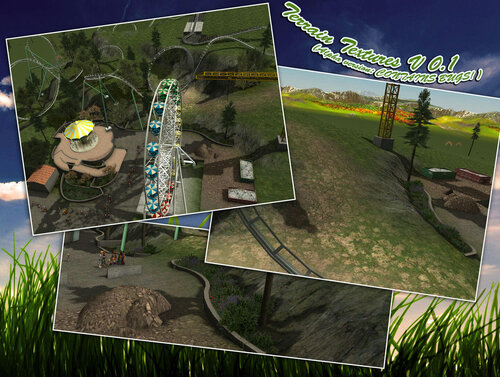 I know I'm the one that submitted this file for reupload, but this was actually created by djF. I do appreciate you adding the tutorial I made though! ?
- 2 comments
- 1 review