
Old-Spice
Members
-
Joined
-
Last visited
-
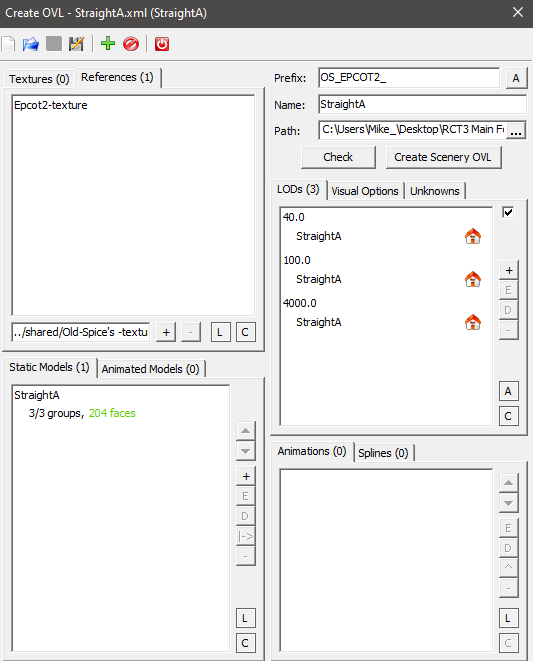
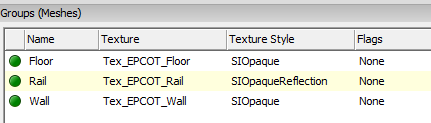
Hey! Yes, I did find that link about 20 minutes ago and read through all the pages. (Learned that we can do recolorable textures for the bridge models!) By trying to use a shared texture file, the game will load the textures only once for all the pieces involved, instead of loading the same textures into memory, over and over each time a path piece is placed. So I have done this by creating "Epcot2-texture.common.ovl" and I removed the "..\shared\" from the beginning as well. So I am completely stumped. Everything says that this should be working, but something is not working like it should. I will be moving soon-but I will try a few different things once I am settled in my new place, and I will even try to rename the texture files to not include and underscores of hyphens. I looked in the path folders from the paths that I made like 10 years ago, and I confirmed that they do include the hyphen in the texture file, so I don't think thats the case, and the importer also adds this by default. The models load fine, aside form the green blob. I had some initial issues with the pieces being rotated incorrectly, but I worked through those already. And to JB- there are no stupid questions or ideas here! I'm stumped. And thank you both for your ideas and input!!
-
Thank you kindly - I will see if they have any input!
-
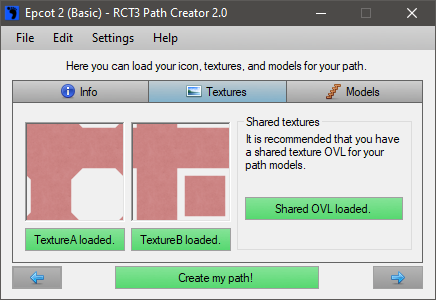
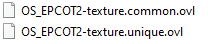
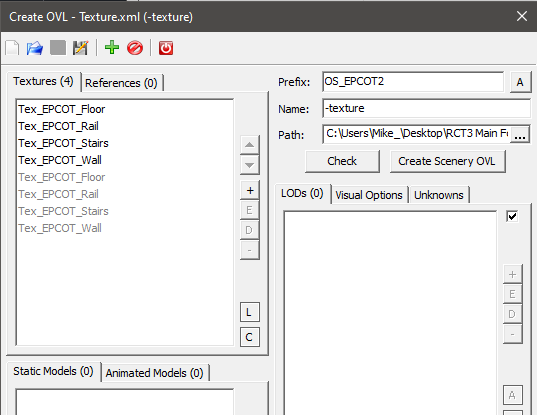
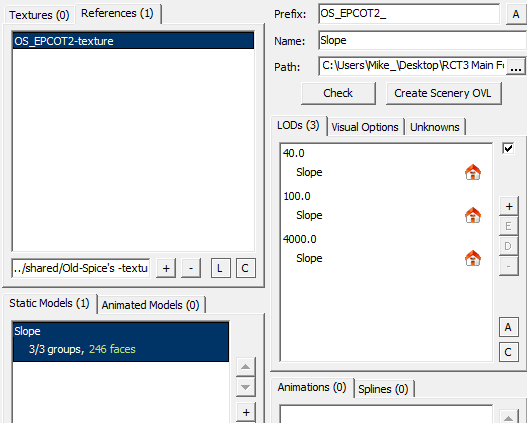
Haha, I know right! I was going through files on old hard drives and I found some of my stuff, but sadly its a mere fraction. I surprised myself when I was still able to navigate the importer and create these ovls. So to answer your questions. Yes, I have the textures up to a max of 512x. From what I can see, the Custom Path Creator has created the path properly. I have uploaded the shared texture ovl that was made in the importer, here in the path creator. It also appears to have successfully added it into the path folder, along with the other path items. (I looked at the other paths and all show the same structure) Here is how it was set up in the importer: Exporting gives me the "OS_EPCOT2-texture" ovl's Here is the OLV file for "Slope" You can see that I have added the reference and named it the same as the output file. Not sure if this is just a naming issue, or if I am misconfiguring the reference file. Was not sure if anyone old or new is working with the importer because my rapidly aging brain is not working it out!
-
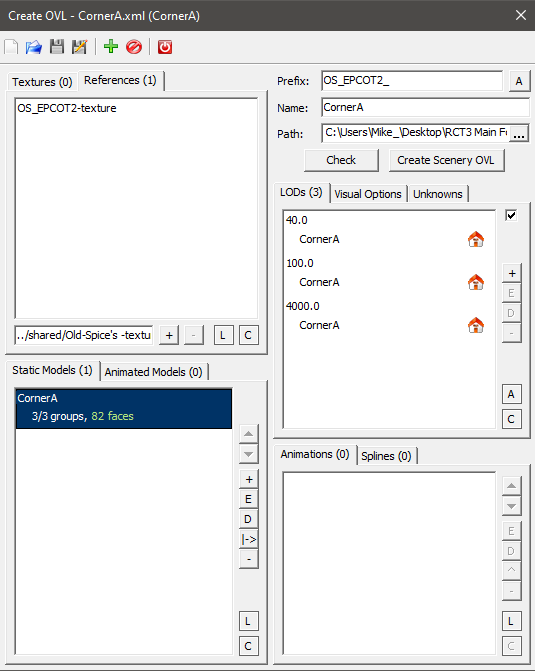
Hello! Blast from the past.. I recently found ParkCrafters and was very happy to see so much of RCT3's custom content saved. So much time and dedication has gone into creating things for this game. I have been trying to see if this ol' guy still has it, and I am running into an issue. I am trying to make a new path, and I am currently working out the following kink: Texture Referencing is not working. I have created the ovl files in the importer, but I am having an issue where the shared textures are not being referenced correctly, yielding me the big green blob. I have created "OS_EPCOT2-texture.common.ovl" I set the ref in the importer to "OS_EPCOT2-texture" (see attached image:) Anyone have any ideas? I'm sure its somethings simple.
-
Big thanks for your work keeping the game alive.
-
I would stick with citytrader myself as well. 😉